Buying Guides
HDMI Cables Explained
HDMI 2.0 vs 2.1, certified cable tiers, length limits, active optical cables, eARC, and how to fix handshake problems.
We may earn a commission when you buy through links on this site, at no extra cost to you. It never affects what we recommend. Learn more.
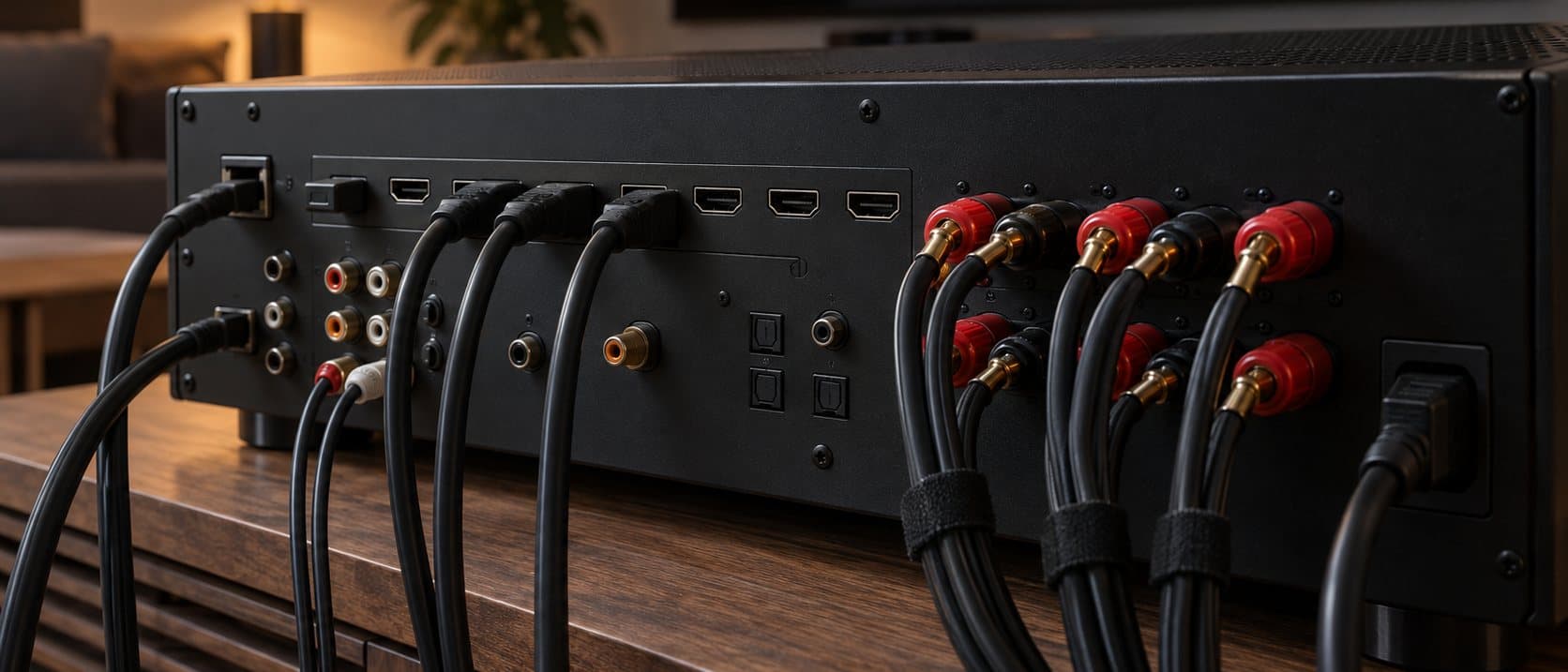
HDMI carries every bit of video and audio in a home theater, and it is the component people overspend on most and understand least. The version numbers describe the ports on your devices, the certification tiers describe the cables, and the bandwidth of your content decides which one you actually need. This guide sorts all three and ends with how to fix the handshake problems that account for most "my HDMI is broken" complaints.
HDMI versions: what the ports can do
HDMI version numbers belong to the devices, not the cables. A source, a receiver, and a display each have ports that support a particular version, and the chain runs at the capability of the weakest link.
HDMI 2.0 supports a maximum of 18 Gbps. That is enough for 4K at 60 Hz with 8-bit color at full 4:4:4 chroma, or 4K60 with 10-bit or 12-bit HDR at 4:2:2 or 4:2:0 chroma subsampling. In practice, 4K60 HDR movies and streaming run at 4:2:0 and fit comfortably.
HDMI 2.1 raises the ceiling to 48 Gbps using a new signaling scheme called FRL (Fixed Rate Link) instead of the older TMDS. It adds 4K at 120 Hz, 8K at 60 Hz, eARC, VRR, ALLM, and QMS. Devices may implement some or all of these; the HDMI Forum allows a port to be labeled 2.1 without supporting every feature, so read the specific feature list rather than the version number. Some 2.1 ports are capped at 40 Gbps, which handles 4K120 at 10-bit but not 12-bit.
Bandwidth by format
The bandwidth a signal needs depends on resolution, frame rate, color depth, and chroma subsampling. These are the common combinations:
| Format | Color depth | Chroma | Bandwidth | Minimum port |
|---|---|---|---|---|
| 4K60 SDR | 8-bit | 4:4:4 | 17.8 Gbps | HDMI 2.0 |
| 4K60 HDR (streaming, disc) | 10-bit | 4:2:0 | 11.1 Gbps | HDMI 2.0 |
| 4K60 HDR | 10-bit | 4:4:4 | 22.3 Gbps | HDMI 2.1 |
| 4K120 HDR | 10-bit | 4:4:4 | 40.1 Gbps | HDMI 2.1 (40 Gbps) |
| 4K120 HDR | 12-bit | 4:4:4 | 48.1 Gbps | HDMI 2.1 with DSC |
| 8K60 | 10-bit | 4:2:0 | 40.1 Gbps | HDMI 2.1 (48 Gbps) |
DSC (Display Stream Compression) is a visually lossless compression that lets 8K60 and 4K120 at higher bit depths fit under 48 Gbps. Both ends of the link have to support it.
The practical takeaway: for movies and TV, even 4K HDR, HDMI 2.0 and an 18 Gbps cable are enough. HDMI 2.1 bandwidth is for gaming at 4K120 and for 8K.
Certified cable tiers
Cables are certified for bandwidth, not for an HDMI version. The three tiers you will see:
- High Speed HDMI: certified to 10.2 Gbps. Handles 1080p and 4K30. Older, and marginal for 4K60 HDR.
- Premium High Speed HDMI: certified to 18 Gbps, the full HDMI 2.0 spec. Carries a QR-code hologram label from the HDMI Licensing Administrator's certification program. Enough for every 4K60 format.
- Ultra High Speed HDMI: certified to 48 Gbps, the full HDMI 2.1 spec. Also carries a scannable certification label. Required for 4K120, 8K, and 12-bit 4K60 4:4:4. Every Ultra High Speed cable also passes EMI testing to avoid interfering with wireless devices nearby.
A cable marked "8K" or "48 Gbps" without the certification hologram may or may not actually hit that bandwidth. The label is the only thing that ties the marketing claim to a test. Use the HDMI Licensing Administrator's verification app to scan it if you want to be sure.
Length limits for passive copper
Passive HDMI cables are just copper wire, and copper attenuates high frequencies over distance. The higher the bandwidth, the shorter the reliable run.
- 48 Gbps (Ultra High Speed): reliable up to about 3 meters (10 feet) for certified passive cable. Some certified cables reach 5 meters, but that is the limit of the certification program for passive copper.
- 18 Gbps (Premium High Speed): reliable to about 5 meters with quality cable, and 7 to 8 meters with thicker conductors (24 AWG rather than 28 AWG). Beyond that you are relying on the equalization in the receiving chip and results vary.
- 10.2 Gbps (1080p): 15 meters or more is common with thick passive cable.
Past those distances, the signal needs help. The options are:
- Active copper cables have a signal booster chip in the display-end connector, powered from the HDMI port's 5 volt line. They are directional (the ends are labeled source and display) and extend 18 Gbps to about 15 meters and 48 Gbps to about 5 to 8 meters.
- Active optical HDMI converts the signal to light in the source connector, runs it over fiber, and converts it back at the display. These carry full 48 Gbps to 30, 50, or even 100 meters with no loss. They are also directional, thinner and lighter than long copper, and immune to electrical interference. For a ceiling-mounted projector or any run over 8 meters, this is the correct choice.
eARC versus ARC
Audio Return Channel sends audio from the TV back down the HDMI cable to the receiver. It exists so that apps running on the TV, and devices plugged directly into the TV, can play through the theater speakers.
- ARC (HDMI 1.4) has about 1 Mbps of bandwidth. It carries stereo PCM and compressed 5.1 (Dolby Digital, DTS). It can pass Dolby Digital Plus with Atmos on some TVs, but not lossless formats.
- eARC (HDMI 2.1) has 37 Mbps. It carries up to 8 channels of uncompressed PCM, and the lossless Dolby TrueHD and DTS-HD Master Audio streams with Atmos and DTS:X objects intact. It also has a mandatory lip-sync correction mechanism.
eARC is a feature of the TV and receiver ports, not the HDMI version overall. Many TVs that are otherwise HDMI 2.0 include one eARC port. The cable requirement is modest: eARC works over a Premium High Speed cable with Ethernet, and any Ultra High Speed cable. Connect the receiver's HDMI output to the TV's port labeled ARC or eARC, then enable eARC and set the TV's digital audio output to "pass-through" or "bitstream" in its menus.
CEC
Consumer Electronics Control lets devices on the HDMI bus send commands to each other: pressing play on a disc player turns on the TV and switches the input, or the TV's remote adjusts the receiver's volume. Every manufacturer gives it a different brand name in the settings menu, but it is the same protocol.
In-wall rated cables
Cable that runs inside a wall or ceiling should carry a CL2 or CL3 rating. These are fire safety ratings from the National Electrical Code (Article 725) that specify the jacket resists spreading flame. CL3 is rated for slightly higher voltage than CL2; either is fine for HDMI. CMP (plenum) rating is required only when the cable runs through air handling spaces such as drop ceilings that return air to the HVAC.
Expensive cables do not improve the picture
HDMI is a digital transmission. The source sends a stream of bits, and the display either receives those bits correctly or it does not. There is no intermediate state where the picture is a little softer, the colors a little less rich, or the bass a little less deep because the cable was inexpensive. Those are analog failure modes, and they do not apply.
A digital link fails in visible, obvious ways:
- Sparkles: small white or colored dots flickering across the image, caused by individual bit errors that the display cannot correct.
- Dropouts: the picture cutting to black for a second or two, then returning, caused by the link losing sync and renegotiating.
- No signal: the handshake never completes at the requested resolution.
- Falling back: the devices negotiate down to a lower resolution or frame rate because the higher one fails.
If none of those is happening, the cable is delivering every bit and a more expensive one cannot deliver more. Gold plating, oxygen-free copper, braided jackets, and directional arrows on a passive cable change nothing about the picture. Spend on certification and appropriate length instead.
Troubleshooting handshake issues
HDMI devices negotiate two things when connected: the EDID (a table of what the display can accept) and HDCP (copy protection encryption). Most handshake failures are one of those two, or bandwidth. Work through this list in order.
- Power cycle everything, in order. Turn all devices off. Unplug them from mains for 30 seconds. Power on the display first, then the receiver, then the source. This clears stale EDID data and forces a fresh handshake.
- Reseat both ends of every cable. HDMI connectors are friction fit and creep loose, especially on wall mounts and on receivers with heavy cables hanging off the back.
- Swap in a short, certified cable. If a 1 meter certified cable fixes it, the long cable is the problem, and it is a bandwidth or length issue. Move to active or optical.
- Lower the signal format. In the source's video settings, drop from 4K120 to 4K60, or from 12-bit to 10-bit, or set chroma to 4:2:0. If that resolves it, the cable or one device in the chain cannot carry the full bandwidth.
- Check the input's mode setting. Many TVs and receivers ship with each HDMI input set to a compatibility mode that limits it to HDMI 1.4 bandwidth. Look for a per-input setting named something like "Enhanced," "Deep Color," "Signal Format," or "4K Enhanced" and enable it for the inputs carrying 4K HDR.
- Bypass the receiver. Connect the source directly to the display. If that works, the receiver is the weak link: either its input is bandwidth-limited, or its firmware needs updating.
- Update firmware. HDMI 2.1 handshakes with certain combinations of console, receiver, and TV have been fixed by firmware updates on all three types of device. Check every device in the chain.
- Disable CEC temporarily. CEC can interfere with input switching and cause devices to fight over the link. Turn it off on all devices, test, then re-enable one at a time.
For the receiver side of these features, see how to choose an AV receiver. For the projector runs that push cable length the hardest, the projector throw calculator will tell you how far the projector sits from the equipment rack, and projector vs TV covers the tradeoffs of that installation.
Get new guides in your inbox
One email when we publish something worth reading. No spam.